本文翻译自Apple官方文档:Handoff Programming Guide
#关于Handoff
Handoff是iOS 8 和 OS X v10.10中引入的功能,可以让同一个用户在多台设备间传递项目。
Handoff能让用户从一台设备开始一个项目,然后切换至其他设备继续进行,这一切都是无缝的,每台设备都无需重新配置。例如,用户正在Mac上的Safari浏览一片长文章,随后他可以切换到附近一台已使用相同Apple ID 登入iCloud的iOS设备上,在这台iOS设备上的Safiri中继续浏览相同的网页,页面滚动的位置和原设备上的一样。
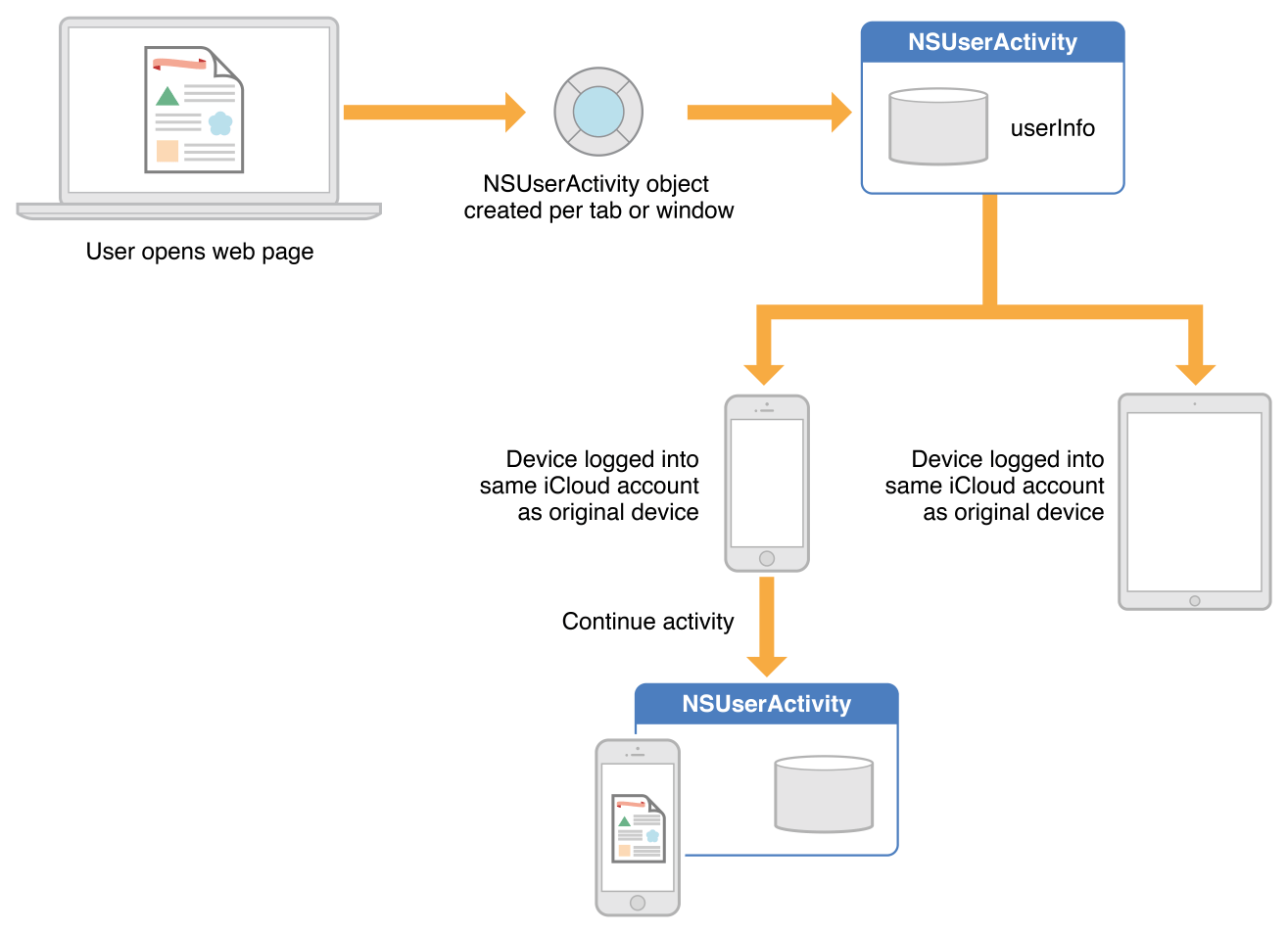
Apple的应用,比如Safari、邮件、地图、联系人、备忘录、日历和提醒事项,在iOS8 和 OS X v10.10中使用公共API来实现Handoff功能。第三方开发者也可以使用相同的API来在应用中实现Handoff,这些应用需要有同一个Team ID。此类应用必须通过App Store发布或者使用注册开发者签名。
#Handoff交互
传递用户的活动包括3个阶段:
- 为用户在你的app中的每一个活动创建一个user activity 对象。
- 定期使用用户的最新信息更新user activity 对象。
- 当用户请求时,在不同的设备上继续用户的活动。
基于文件的app(也就是基于NSDocument或者UIDocument子类的app)为Handoff的这3个阶段提供了内建支持。响应者对象(NSResponder和UIResponder的子类)为更新user activity和管理当前状态提供了内建支持。你的app可以直接创建、更新和继续user activity,特别是在app delegate中。
Handoff主要是依赖Foundation中的一个类NSUserActivity,该类支持UIKit和AppKit中的一小部分API。app将用户活动的信息封装在NSUserActivity对象中,这些activity就用来在其他设备上继续活动。特定user activity的Handoff需要最开始的应用把活动的NSUserActivity对象指定为当前activity,保存相关信息,然后把数据发给另一台设备。Handoff只在设备间传递能描述用户活动的必要信息,而大规模的数据同步则由iCloud来处理。
在“另一台”设备上,会通知用户有一项活动可以继续。如果用户选择继续该活动,系统会启动合适的app,并提供activity中的数据。user activity只能在与原app有相同Team ID 并且支持这种activity类型的app中继续。在app的Infp.plist中的NSUserActivityTypes键下可以设置支持的activity类型。所以,“另一台”设备选择启动哪个app是基于:目标Team ID,起始的NSUserActivity对象的activity type 属性,还可能包括activity对象的title属性。“另一台”设备上的app可以根据user activity对象中userInfo字典的内容来配置UI界面和状态,以实现用户活动的无缝切换。
另外,如果继续一个activity需要更多的数据,不能使用第一种传输机制来高效传输,那么resuming app可以让起始app的user activity对象在应用间打开流来传输更多数据。例如,用户正在写一封含有图片的电子邮件,那么最好的方法就是流来把这些数据传输到另一台设备上。更多信息参见Using Continuation Streams。
iOS和OS X中基于文件的app已自动支持Handoff,详见Supporting a User Activity in Document-Based Apps(本文内)。
#User Activity对象
NSUserActivity对象封装了特定设备、特定应用中用户活动的状态,它是Handoff机制中主要的对象。起始app为每个它支持传递给另一台设备的用户活动创建一个user activity 对象。例如,网页浏览器会为每一个正在浏览网页的标签页或者窗口创建一个user activity 对象。但是只有在前台的标签页或者窗口对应的activity 对象才是当前有效的,只有当前有效的activity才能用于继续用户活动(continuation好难翻译。。。。。。。。)。
NSUserActivity对象通过它的activityType和title属性来区分。NSUserActivity的userInfo字典里有状态数据,它还有一个叫needsSave的脏标志(dirty flag)来支持delegete的延迟更新状态。NSUserActivity的方法addUserInfoEntriesFromDictionary:允许delegate和其他委托(clients)把状态数据合并到userInfo字典里。
更多信息参见NSUserActivity Class Reference。
#User Activity 代理
User activity delegate是一个遵从NSUserActivityDelegate协议的对象。它通常是app中顶层对象,比如view controller 或者app delegate。delegate管理着activity与app的交互。
NSUserActivity的delegate属性就是user activity delegate,负责更新NSUserActivity对象userInfo字典中的数据,以便它可以传递给另一台设备。当系统需要activity更新时,比如活动要在另一台设备上继续之前,系统会调用delegate的userActivityWillSave:方法。你可以实现这个回调来更新对象中承载数据的属性,例如userInfo、title等。一旦系统调用这个方法,它会把needsSave重置为NO。如果userInfo或者其他承载数据的属性又发生变化的话,把这个值改为YES。
另一方面,除了实现上面所说的delegate的userActivityWillSave:方法之外,你还可以让UIKit或者AppKit自动管理user activity。通过设置响应者对象的userActivity属性,并且实现响应者的updateUserActivityState:回调,app就会选择自动管理user activity,详见Managing a User Activity With Responders(本文内)。选择一个合适你的实现方法。(This arrangement is preferred if it works for your user activity.)
更多信息参见NSUserActivityDelegate Protocol Reference。
#App框架支持
UIKit和AppKit在document、responder和app delegate中为Handoff提供了支持。尽管不同平台之间有一些细小的差别,但是允许app保存和恢复user activity的基本机制是相同的,API也是相同的。
##在基于文件的app中支持User Activity
如果你在app的Info.plist里为每个CFBundleDocumentTypes入口添加一个NSUbiquitousDocumentUserActivityType键值对,这样iOS和OS X中基于文件的app就自动自动支持Handoff了。如果有这个键的话,NSDocument和UIDocument就会为特定文件类型的基于iCloud的文件,自动创建NSUserActivity对象。NSUbiquitousDocumentUserActivityType的值是一个字符串,表示NSUserActivity对象的activity type。也就是说,你为基于文件的app所支持的文件类型都提供了一个activity type。多个文件类型可以有同一个activity type。NSDocument和UIDocument会自动把fileURL属性放到activity对象userInfo字典的NSUserActivityDocumentURLKey键下。
在OS X中,如果app delegate方法application:continueUserActivity:restorationHandler:返回NO,或者没有实现,那么AppKit可以自动恢复用上面方式创建的NSUserActivity对象。在这种情况,文件会使用NSDocumentController的方法openDocumentWithContentsOfURL:display:completionHandler: 来打开,并且会收到一条restoreUserActivityState: 消息。
更多信息参见Adopting Handoff in Document-Based Apps、NSDocument Class Reference 和 UIDocument Class Reference。
##用响应者来管理user activity
如果你把user activity设置为一个响应者对象的userActivity属性,UIKit 和 AppKit就可以管理user activity。当响应者知道activity的状态是已修改(dirty)时,它必须要把activity对象的needsSave属性置为YES。系统会在合适时机自动保存NSUserActivity对象,首先会通过回调updateUserActivityState:给响应者一个机会来更新activity的状态。你的响应者子类必须重写updateUserActivityState:方法来给user activity对象添加状态数据。如果多个响应者共用一个NSUserActivity对象,当系统更新user activity对象时,它们都会收到updateUserActivityState:回调。在更新回调发送之前,activity对象的userInfo字典会被清空。
在OS X中,NSUserActivity对象由AppKit管理,并与响应者相关联。根据main window 和响应者链,activity对象会自动变为当前有效,也就是在文件的window变为main window时。但是在iOS中,NSUserActivity对象由UIKit管理,你必须显式调用becomeCurrent或者当app进入前台时,给在视图层级中的UIViewController对象设置文件的NSUserActivity对象。
响应者可以把它的userActivity属性置为nil来断开与activity的关联。当一个由app框架管理的NSUserActivity对象没有关联的响应者和文件时,它就自动无效了。
更多信息参见Adopting Handoff in Responders、 NSResponder Class Reference 和 UIResponder Class Reference。
##使用app delegate来继续activity
在一个不是基于文件的app中,app delegate就是继续user activity的主要入口。当用户选择要继续一个activity时,Handoff会启动合适的app,然后给app delegate发送一条application:willContinueUserActivityWithType:消息。app让用户知道activity马上就可以继续。同时,当app delegate收到 application:continueUserActivity:restorationHandler: 消息时,NSUserActivity 对象会传递过来。你应该实现这个方法,通过user activity对象来恢复activity,配置app的界面。
application:continueUserActivity:restorationHandler:消息包括一个恢复处理block,如果你的app使用其他的响应者或者文件对象来恢复user activity,那你可以调用这个block。创建这些对象(如果已经有的话就不用创建了),传入block的NSarray参数中。系统会给每个对象发送一条restoreUserActivityState:消息,并传入user activity对象。每个对象可以用activity的userInfo数据来恢复。关于恢复处理block的更多信息,参见NSApplicationDelegate Protocol Reference中的application:continueUserActivity:restorationHandler: 方法。
如果你没有实现application:continueUserActivity:restorationHandler:方法或者返回NO,并且你的app是基于文件的,AppKit可以自动恢复activity,这在Supporting User Activity in Document-Based Apps中有描述。更多信息参见Continuing an Activity。
#Adopting Handoff
User activities can be shared among apps that are signed with the same developer team identifier and supporting a given activity type. If an app is document-based, it can opt to support Handoff automatically. Otherwise, apps must adopt a small API in Foundation, as described in this chapter.
##Identifying User Activities
The first step in implementing Handoff is to identify the types of user activities that your app supports. For example, an email app could support composing and reading messages as two separate user activities. A list-handling app could support creating (and editing) list items as one user activity type, and it could support browsing lists and items as another. Your app can support as many activity types as you wish, whatever users do in your app. For each activity type, your app needs to identify when an activity of that type begins and ends, and it needs to maintain up-to-date state data sufficient to enable the activity to continue on another device.
User activities can be shared among any apps signed with the same team identifier, and you don’t need a one-to-one mapping between originating and resuming apps. For example, one app creates three different types of activities, and those activities are resumed by three different apps on the second device. This asymmetry can be a common scenario, given the preference for iOS apps to be smaller and more focused on a dedicated purpose than more comprehensive Mac apps.
##Adopting Handoff in Document-Based Apps
Document-based apps on iOS and OS X automatically support Handoff by automatically creating NSUserActivity objects for iCloud-based documents if the app’s Info.plist property list file includes a CFBundleDocumentTypes key of NSUbiquitousDocumentUserActivityType, as shown in Listing 2-1. The value of NSUbiquitousDocumentUserActivityType is a string used for the NSUserActivity object’s activity type. The activity type correlates with the app’s role for the given document type, such as editor or viewer, and an activity type can apply to multiple document types. In Listing 2-1 the string is a reverse-DNS app designator with the name of the activity, editing, appended. If they are represented in this way, the activity type entries do not need to be repeated in the NSUserActivityTypes array of the app’s Info.plist.
Listing 2-1 Info.plist entry for Handoff in document-based apps
1 | <key>CFBundleDocumentTypes</key> |
The document’s URL is put into the userInfo dictionary with the NSUserActivityDocumentURLKey.
The automatically created user activity object is available through the document’s userActivity property and can be referenced by other objects in the app, such as a view controller in iOS or window controller in OS X. This referencing enables apps to track position in a document, for example, or to track the selection of particular elements. The app sets the activity object’s needsSave property to YES whenever that state changes and saves the state in its updateUserActivityState: callback.
The userActivity property can be used from any thread. It conforms to the key-value observing (KVO) protocol so that a userActivity object can be shared with other objects that need to be kept in sync as the document moves into and out of iCloud. A document’s user activity objects are invalidated when the document is closed.
##Implementing Handoff Directly
Adopting Handoff in your app requires you to write code that uses APIs in UIKit and AppKit provided for creating a user activity object, updating the state of the object to track the activity, and continuing the activity on another device.
###Creating the User Activity Object
Every user activity that can potentially be handed off to a continuing device or designated as searchable is represented by a user activity object instantiated from the NSUserActivity class. An originating app creates a user activity object for each user activity it supports. The nature of those user activities depends on the app. For example, a web browser might designate the user browsing a web page as one activity. The app creates an NSUserActivity instance, as shown in Listing 2-2, whenever the user opens a new window or tab displaying content from a URL, placing the URL in the activity object’s userInfo dictionary, along with the scroll position of the page. Place this code in a controller object such as a window or view controller that has knowledge of the current state of the activity and that can update the state data in the activity object as necessary.
Listing 2-2 Creating the user activity object
1 | NSUserActivity *myActivity = [[NSUserActivity alloc] |
To designate an activity as searchable, you can amend the code in Listing 2-2 to include code that provides more information about the activity and sets its eligibility, as shown in Listing 2-3.
Listing 2-3 Designating an activity as searchable
myActivity.keywords = [NSSet setWithArray:@[…]];
// Enable the activity to participate in search results.
myActivity.eligibleForSearch = YES;
After setting up an activity, set its state to current, as shown here:
[myActivity becomeCurrent];
When your app is finished with an NSUserActivity object, it should call invalidate before deallocating the object. This makes the object disappear from all devices (if it was present) and frees up any system resources devoted to that user activity object.
###Specifying an Activity Type
The activity type identifier is a short string appearing in your app’s Info.plist property list file in its NSUserActivityTypes array, which lists all the activity types your app supports. The same string is passed when you create the activity, as shown in Listing 2-2 where the activity object is created with the activity type of com.myCompany.myBrowser.browsing, a reverse-DNS-style notation meant to avoid collisions. When the user chooses to continue the activity, the activity type (along with the app’s Team ID) determines which app to launch on the receiving device to continue the activity.
Note: You specify the activity type of an NSUserActivity object when you create the instance. You cannot change the activity type of the object after it is created.
For example, a Reminders-style app serializes the reminder list the user is looking at. When the user clicks on a new reminder list, the app tracks that activity in the NSUserActivityDelegate. Listing 2-4 shows a possible implementation of a method that gets called whenever the user switches to a different reminder list. This app appends an activity name to the app’s bundle identifier to create the activity type to use when it creates its NSUserActivity object.
Listing 2-4 Tracking a user activity
1 | // UIResponder and NSResponder have a userActivity property |
The code in Listing 2-4 uses the setNeedsSave: accessor method to mark the user activity object as needing to to be updated. This enables the system to coalesce updates and perform them lazily.
###Populating the Activity Object’s User Info Dictionary
The activity object has a user info dictionary that contains whatever data is needed to hand off the activity to the continuing app. The user info dictionary can contain NSArray, NSData, NSDate, NSDictionary, NSNull, NSNumber, NSSet, NSString, and NSURL objects. The system modifies NSURL objects that use the file: scheme and point at iCloud documents to point to those same items in the corresponding container on the receiving device.
Note: Transfer as small a payload as possible in the userInfo dictionary—3KB or less. The more payload data you deliver, the longer it takes the activity to resume.
Listing 2-5 shows an example that creates a user activity object for an app that reads documents on a website. The activity type, set when the object is created, is shown in reverse-DNS-style notation that specifies the company, app, and finally the particular activity. The webpageURL property represents the URL where the document being read is located, and the user info dictionary is populated with keys and values representing the document’s name and the current page number and scroll position. As the reader progresses through a document, your app needs to keep that information current.
Listing 2-5 Initializing a user info dictionary
1 | NSUserActivity* myActivity = [[NSUserActivity alloc] |
###Adopting Handoff in Responders
You can associate responder objects (inheriting from NSResponder on OS X or UIResponder on iOS) with a given user activity if you set the activity as the responder’s userActivity property. The system automatically saves the NSUserActivity object at appropriate times, calling the responder’s updateUserActivityState: override to add current data to the user activity object using the activity object’s addUserInfoEntriesFromDictionary: method.
Listing 2-6 Responder override for updating an activity’s state
1 | - (void)updateUserActivityState:(NSUserActivity *)userActivity { |
##Continuing an Activity
Handoff automatically advertises user activities that are available to be continued on iOS and OS X devices that are in physical proximity to the originating device and signed into the same iCloud account as the originating device. When the user chooses to continue a given activity, Handoff launches the appropriate app and sends the app delegate messages that determine how the activity is resumed, as described in Continuing an Activity Using the App Delegate.
Implement the application:willContinueUserActivityWithType: method to let the user know the activity will continue shortly. Use the the application:continueUserActivity:restorationHandler: method to configure the app to continue the activity. The system calls this method when the activity object, including activity state data in its userInfo dictionary, is available to the continuing app.
Note: For URLs transferred in the userInfo dictionary of an NSUserActivity object, you must call startAccessingSecurityScopedResource and it must return YES before you can access the URL. Call stopAccessingSecurityScopedResource when you are done using the file.
Exceptions to this requirement are URLs of UIDocument documents and those of NSDocument that are automatically created for apps specifying NSUbiquitousDocumentUserActivityType and returning NO from application:continueUserActivity:restorationHandler: (or leaving it unimplemented). See Adopting Handoff in Document-Based Apps.
Additional configuration of your app for continuing the activity can optionally be performed by objects you give to the restoration handler block that is passed in with the application:continueUserActivity:restorationHandler: message. Listing 2-7 shows a simple implementation of this method.
Listing 2-7 Continuing a user activity
1 | - (BOOL)application:(NSApplication *)application |
In this case, the app delegate has an array of NSWindowController objects, windowControllers. These window controllers know how to configure all of the app’s windows to resume the activity. After you pass that array to the restorationHandler block, Handoff sends each of those objects a restoreUserActivityState: message, passing in the resuming activity’s NSUserActivity object. The window controllers inherit the restoreUserActivityState: method from NSResponder, and each controller object overrides that method to configure its window, using the information in the activity object’s userInfo dictionary.
To support graceful failure, the app delegate should implement the application:didFailToContinueUserActivityWithType:error: method. If you don’t implement that method, the app framework nonetheless displays diagnostic information contained in the passed-in NSError object.
Note: The UIApplicationDelegate methods for handoff, described in this section, are not called when either of the application delegate methods application:willFinishLaunchingWithOptions: or application:didFinishLaunchingWithOptions: returns NO.
##Native App–to–Web Browser Handoff
When using a native app on the originating device, the user may want to continue the activity on another device that does not have a corresponding native app. If there is a web page that corresponds to the activity, it can still be handed off. For example, video library apps enable users to browse movies available for viewing, and mail apps enable users to read and compose email, and in many cases users can do the same activity though a web-page interface. In this case, the native app knows the URL for the web interface, possibly including syntax designating a particular video being browsed or message being read. So, when the native app creates the NSUserActivity object, it sets the webpageURL property, and if the receiving device doesn’t have an app that supports the user activity’s activityType, it can resume the activity in the default web-browser of the continuing platform.
A web browser on OS X that wants to continue an activity in this way should claim the NSUserActivityTypeBrowsingWeb activity type (by entering that string in its NSUserActivityTypes array in the app’s Info.plist property list file). This ensures that if the user selects that browser as their default browser, it receives the activity object instead of Safari.
##Web Browser–to–Native App Handoff
In the opposite case, if the user is using a web browser on the originating device, and the receiving device is an iOS device with a native app that claims the domain portion of the webpageURL property, then iOS launches the native app and sends it an NSUserActivity object with an activityType value of NSUserActivityTypeBrowsingWeb. The webpageURL property contains the URL the user was visiting, while the userInfo dictionary is empty.
The native app on the receiving device must opt into this behavior by claiming a domain in the com.apple.developer.associated-domains entitlement. The value of that entitlement has the format
If that domain matches the webpageURL property, Handoff downloads a list of approved app IDs from the domain. Domain-approved apps are authorized to continue the activity. On your website, you list the approved apps in a JSON file named apple-app-site-association, for example, https://example.com/apple-app-site-association. (You must use an actual device, rather than the simulator, to test downloading the JSON file.) Handoff first searches for the file in the .well-known subdirectory (for example, https://example.com/.well-known/apple-app-site-association), falling back to the top-level domain if you don’t use the .well-known subdirectory.
The JSON file contains a dictionary that specifies a list of app identifiers in the format
Listing 2-8 Server-side web credentials
1 | { |
Note: In apps that run in iOS 9.3.1 and later, the size of the apple-app-site-association file (uncompressed) must be no greater than 128 KB, regardless of whether the file is signed. Because the list of paths in the association file should be kept short, you can use wildcard matching to match larger sets of paths.
If your app runs in iOS 9 or later, the apple-app-site-association file may be a JSON file with a MIME type of application/json, and you don’t need to sign it. If your app runs in iOS 8, the file must be CMS signed by a valid TLS certificate and have a MIME type of application/pkcs7-mime. To sign the JSON file, put the content into a text file and sign it. You can perform this task with Terminal commands such as those shown in Listing 2-9, removing the white space from the text for ease of manipulation, and using the openssl command with the certificate and key for an identity issued by a certificate authority trusted by iOS (that is, listed at http://support.apple.com/kb/ht5012). It need not be the same identity hosting the web credentials (https://example.com in the example listing), but it must be a valid TLS certificate for the domain name in question.
Listing 2-9 Signing the credentials file
1 | echo '{"activitycontinuation":{"apps":["YWBN8XTPBJ.com.example.myApp","YWBN8XTPBJ.com.example.myOtherApp"]}}' > json.txt |
The output of the openssl command is the JSON file that you put on your website at the apple-app-site-association URL, in this example, https://example.com/apple-app-site-association.
An app can set the webpageURL property to any web URL, but it only receives activity objects whose webpageURL domain is in its com.apple.developer.associated-domains entitlement. Also, the scheme of the webpageURL must be http or https. Any other scheme throws an exception.
###Using Continuation Streams
If resuming an activity requires more data than can be efficiently transferred by the initial Handoff payload, a continuing app can call back to the originating app’s activity object to open streams between the apps and transfer more data. In this case, the originating app sets its NSUserActivity object’s Boolean property supportsContinuationStreams to YES, sets the user activity delegate, then calls becomeCurrent, as shown in Listing 2-10.
Listing 2-10 Setting up streams
1 | NSUserActivity* activity = [[NSUserActivity alloc] init]; |
On the continuing device, after users indicate they want to resume the activity, the system launches the appropriate app and begins sending messages to the app delegate. The app delegate can then request streams back to the originating app by sending its user activity object the getContinuationStreamsWithCompletionHandler: message, as shown in the override implementation in Listing 2-11.
Listing 2-11 Requesting streams
1 | - (BOOL)application:(UIApplication *)application |
On the originating device, the user activity delegate receives the streams in a callback to its userActivity:didReceiveInputStream:outputStream: method, which it implements to provide the data needed to continue the user activity on the resuming device using the streams.
NSInputStream provides read-only access to stream data, and NSOutputStream provides write-only access. Therefore, data written to the output stream on the originating side is read from the input stream on the continuing side, and vice versa. Streams are meant to be used in a request-and-response fashion; that is, the continuing side uses the streams to request more continuation data from the originating side which then uses the streams to provide the requested data.
Continuation streams are an optional feature of Handoff, and most user activities do not need them for successful continuation. Even when streams are needed, in most cases there should be minimal back and forth between the apps. A simple request from the continuing app accompanied by a response from the originating app should be enough for most continuation events.
##Best Practices
Implementing successful continuation of activities requires careful design because numerous and various components, apps, software objects, and platforms can be involved.
Transfer as small a payload as possible in the userInfo dictionary—3KB or less. The more payload data you deliver, the longer it takes the activity to resume.
When a large amount of data transfer is unavoidable, use streams, but recognize that they have a cost in terms of network setup and overhead.
Plan for different versions of apps on different platforms to work well with each other or fail gracefully. Remember that the complementary app design can be asymmetrical—for example, a monolithic Mac app can route each of its activity types to smaller, special-purpose apps on iOS.
Use reverse-DNS notation for your activity types to avoid collisions. If the activity pertains only to a single app, you can use the app identifier with an extra field appended to describe the activity type. For example, use a format such as com.
. . , as in com.myCompany.myEditor.editing. If you have a user activity that works across more than one app, you can drop the app field, as in com.myCompany.editing. To update the activity object’s userInfo dictionary efficiently, configure its delegate and set its needsSave property to YES whenever the userInfo needs updating. At appropriate times, Handoff invokes the delegate’s userActivityWillSave: callback, and the delegate can update the activity state.
Be sure the delegate of the continuing app implements its application:willContinueUserActivityWithType: to let the user know the activity will be continued. The user activity object may not be available instantly.
In addition to these best practices, there are a few things you should do to ensure that users have a great search experience.When users tap a result, take them directly to the appropriate area in your app. As much as possible, avoid presenting intervening screens or experiences that delay users from reaching the content they’re interested in.
Avoid over-indexing your app content or adding unrelated keywords and attributes in an attempt to improve the ranking of your results. Items that users don’t find useful are quickly identified and can eventually stop showing up in results.
In general, provide a thumbnail image and a succinct title for each activity to enrich the search results.
If you also use Core Spotlight APIs to index user content in your app, use a unique ID to relate a user activity and an item. (To learn more about Core Spotlight APIs, see Core Spotlight Framework Reference.) For example:
// Create an attribute set that specifies a related unique ID for a Core Spotlight item.
1 | CSSearchableItemAttributeSet *attributes = [[CSSearchableItemAttributeSet alloc] initWithItemContentType:@"public.image"]; |